Read-only product demo
Explore GrowPathAI before you sign up
Explore Free, Pro, Commercial and Facility highlights with real interface screenshots, then try five example journal entries. No account needed. All example records are synthetic.
Explore by story
Choose the work you want to do. Five stories use four account types: sellers and creators both use Commercial. These are guided highlights with screenshots, not signed-in workspaces. The interactive sample journal follows below.
Keep one plant's story together
A photo in your camera roll does not tell you when you watered. Keep the picture, the note and the date in one journal.
Read-only walkthrough with synthetic example records. Screenshot controls are not interactive.
Step 1 of 3: Start with a photo
Give later notes a starting point. Open a dated entry to see its photo and what you recorded.
Actual demo interface, captured October 5, 2026. Dates and notes are synthetic; the basil image is AI-generated, not a real grow result. Cropped screenshot. 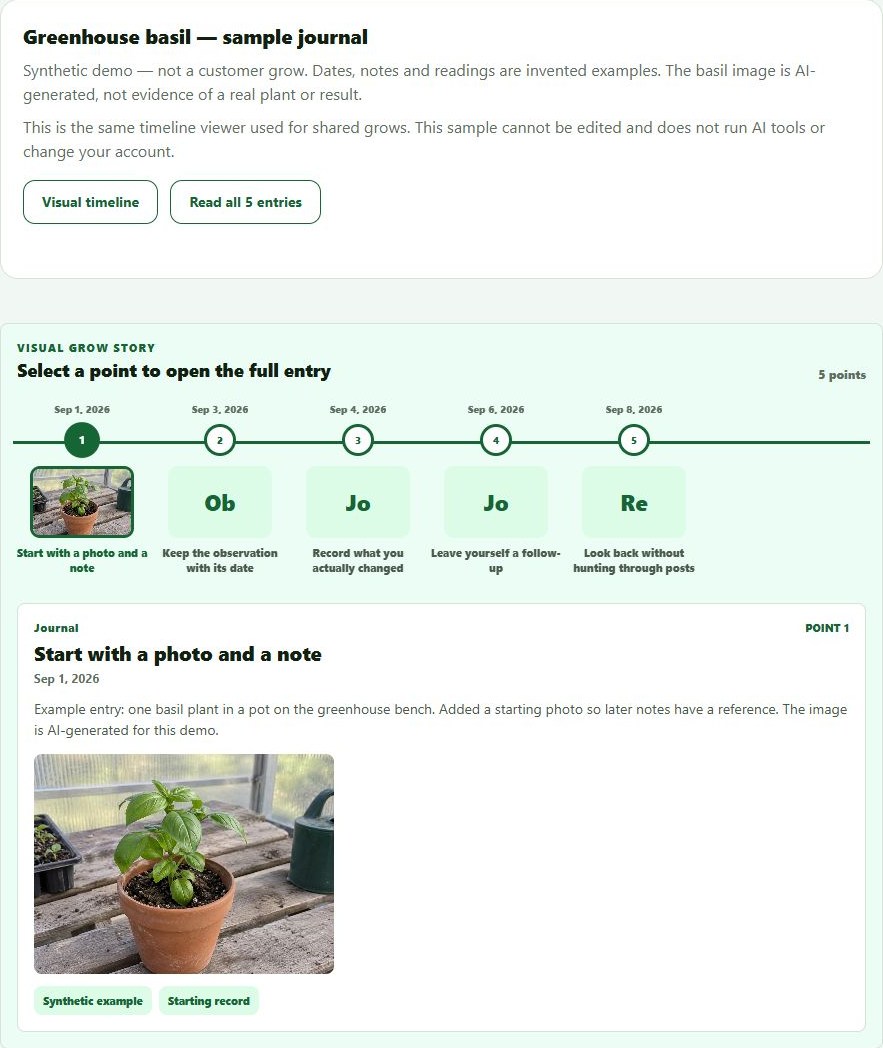
Step 2 of 3: Record what you did
Keep a care action with its date instead of trying to remember it later. The sample amount is invented, not a watering recommendation.
Actual demo interface with synthetic care notes, captured October 5, 2026. Cropped screenshot; no real action or plant outcome is claimed. 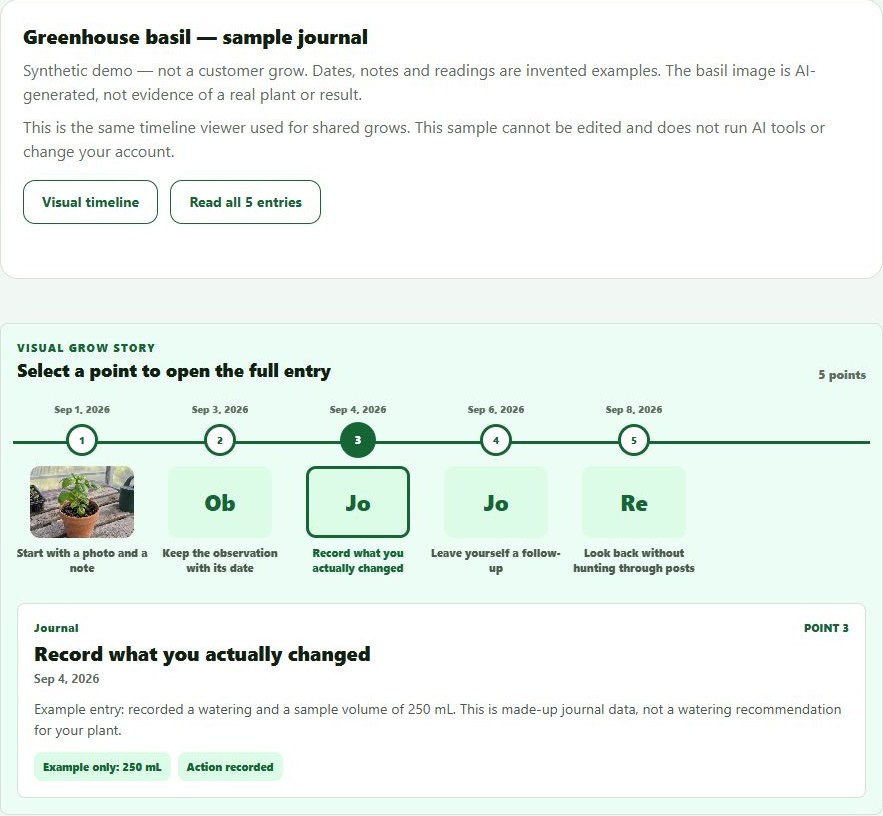
Step 3 of 3: Find it again
Look back through the same sequence. In your own account, you choose what to record and separately review anything you share.
Actual demo interface with synthetic review notes, captured October 5, 2026. Cropped screenshot, not a customer testimonial. 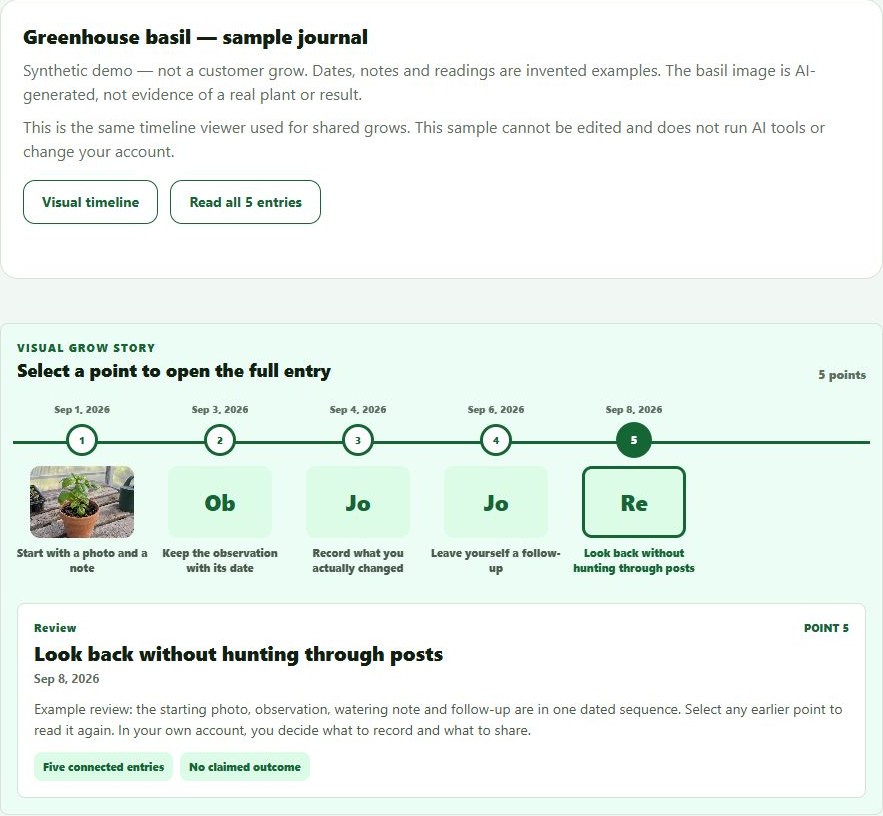
What this example shows
The starting photo, care note and later review stay in the same dated sequence. Try the interactive five-entry journal below.
Fit and limits
Free tracks 1 grow and 1 plant, with 5 AI credits per week. Available plant-care tools can help with other household plants, but they do not add unlimited tracked records or AI use. No payment card required.
Use the records from your grows
When you have several runs, keep their notes available for questions, comparisons and a record you can take away.
Read-only walkthrough with synthetic example records. Screenshot controls are not interactive.
Step 1 of 3: Ask about saved observations
The answer refers to two saved entries and separates their recorded changes from unknown causes. The provider label stays visible.
Actual staging response, October 5, 2026, using synthetic basil records. Cropped to the answer and source context. One example is not a general AI-accuracy claim or growing advice. 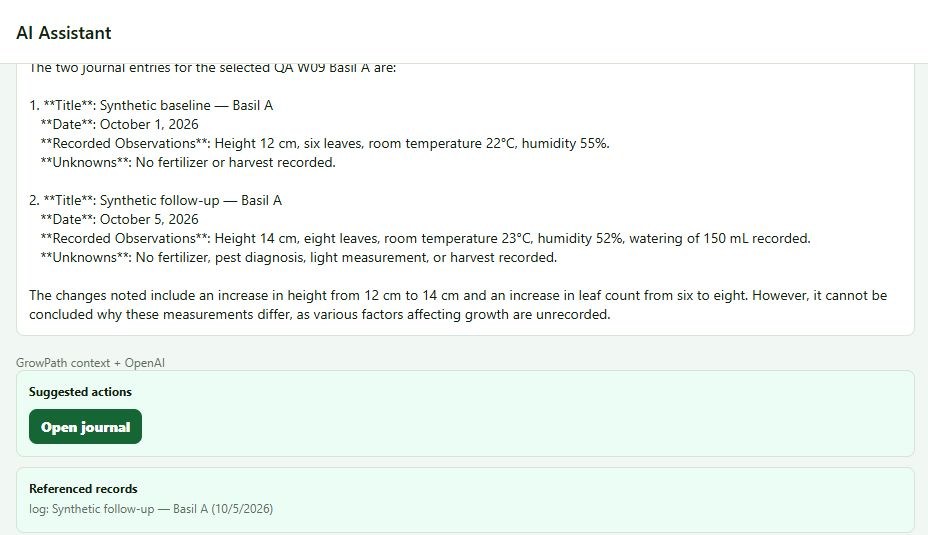
Step 2 of 3: Compare without inventing a winner
Two saved grows supply three notes. Here they lack comparable structured measurements, so the result says insufficient evidence and low confidence instead of declaring a winner.
Actual staging result, October 5, 2026. Cropped summary excludes private record identifiers. Synthetic notes are not measured performance evidence. 
Open full-size screenshot: Compare without inventing a winner
Step 3 of 3: Review the export package
The same sample's journal and saved comparison appear together in the export package. Review the included records before using the available export controls.
Actual staging package with synthetic records, October 5, 2026. Cropped to exclude the private grow identifier. This is the preparation screen, not a picture of a downloaded file or proof of offline media availability. 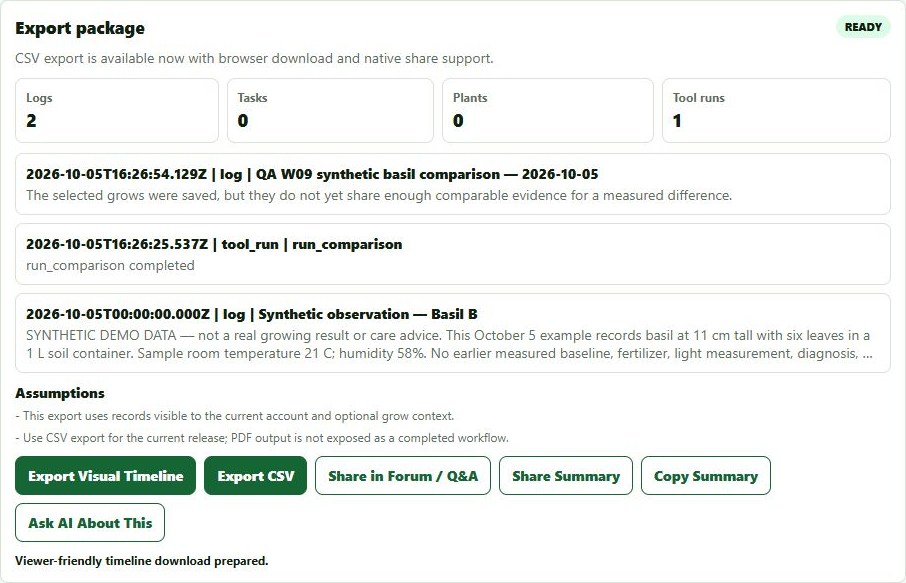
What this example shows
This example connects saved notes, a bounded history answer, an honest comparison and an export package. It does not establish why the plants differed or which run was better.
Fit and limits
Pro includes 10 grows, 50 plants and 100 AI credits per week. These tools are also available on eligible higher plans; this is not an exclusive Pro feature claim. AI uses the displayed action cost. Personal web exports include CSV, viewer-friendly timeline HTML and a PDF with dated notes and permitted photos. This does not include native-app PDF export or a complete original-photo archive. The retained export screenshot shows package preparation, not the downloaded PDF.
Review your offer and its customer view
Keep an offer as a draft while you prepare it. Then check the published presentation and any purchase requirements from the same offer.
Read-only walkthrough with synthetic example records. Screenshot controls are not interactive.
Step 1 of 3: Keep unfinished offers private
This separate sample offer remains a draft with an explicit Publish action. Nothing is published by opening the page.
Actual staging interface, October 5, 2026. Synthetic title and price; cropped to exclude test ratings and activity counters. No publication performed for this capture. 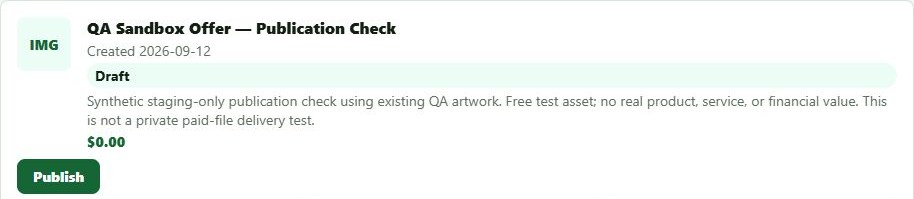
Step 2 of 3: Open the published presentation
A previously published sample has its own View public offer link. The next scene follows that exact offer, not a different product.
Actual staging interface, October 5, 2026. Test price only; cropped to exclude synthetic ratings and activity counters. Publication does not confirm delivery readiness. 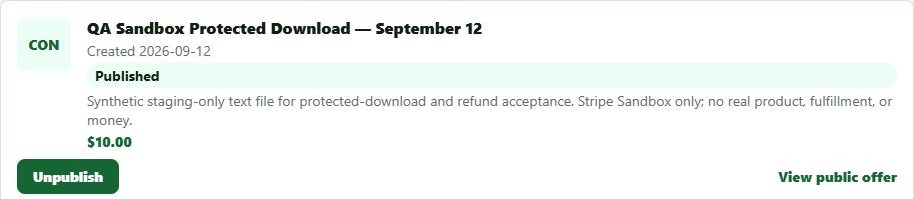
Step 3 of 3: Check purchase readiness too
The matching page shows the offer description and its delivery warning. Until protected delivery is ready, new checkout stays disabled.
Actual staging customer-facing view opened by the owner, October 5, 2026. Synthetic fixture, not an independent buyer purchase or successful delivery. Cropped screenshot. 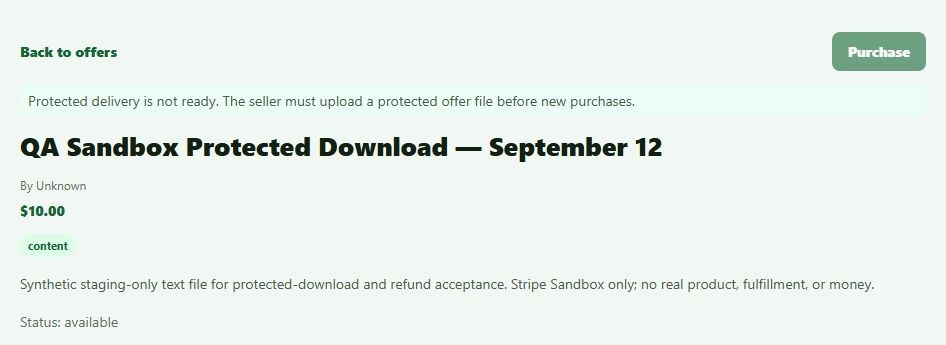
What this example shows
The owner can distinguish drafts from published offers and open the matching customer-facing page. Publication and payment readiness are separate checks.
Fit and limits
Commercial includes 50 grows, 500 plants and 500 AI credits per week. Seller and product eligibility still apply. Protected delivery is not ready in this retained staging example, so Purchase is disabled; no sale, delivery, earnings or customer endorsement is demonstrated. Downloadable offers and Commercial product/trial records are different workflows.
See a course from both sides
Review the saved course and its lesson as the author, then see what a visitor can discover before they have access.
Read-only walkthrough with synthetic example records. Screenshot controls are not interactive.
Step 1 of 3: Review the saved course
The author sees the saved fee, sharing controls and lesson list. The published lesson stays locked for editing until the course is deliberately unpublished.
Actual staging author view, October 5, 2026. Synthetic course and price, cropped screenshot. No fee, publication or lesson was changed. 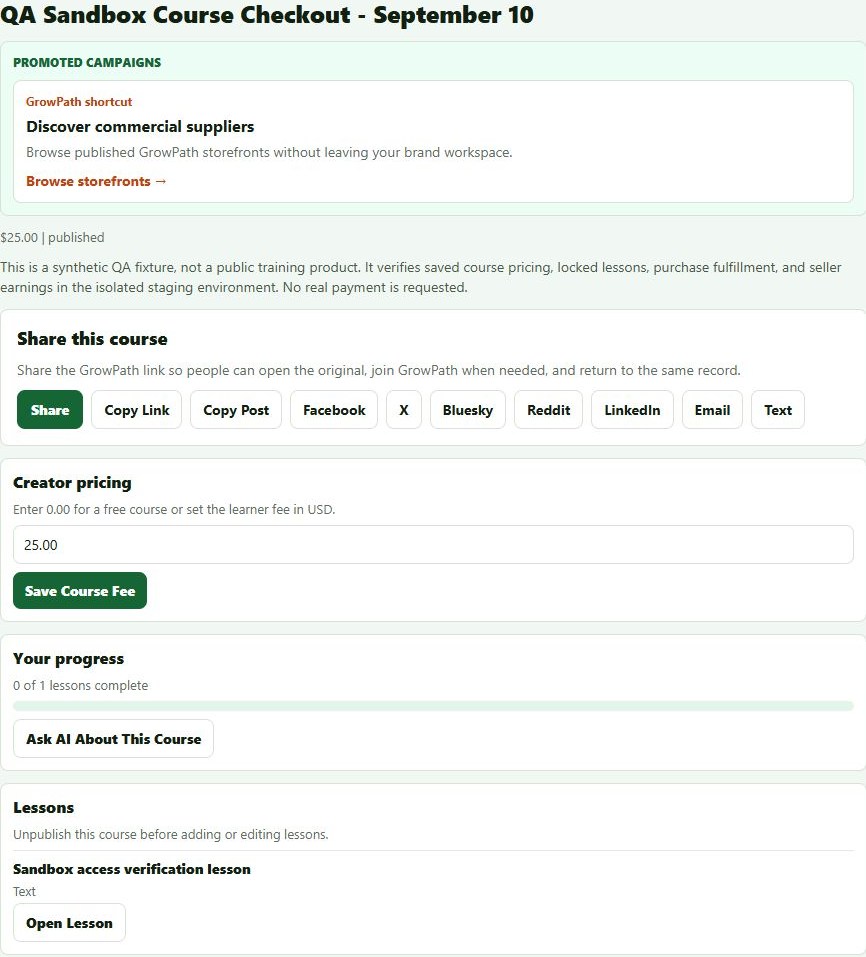
Step 2 of 3: Inspect the lesson experience
The author opens the saved text lesson. Notes, lesson tasks and completion are separate controls; this read-only preview did not use them.
Actual staging owner preview, October 5, 2026. The lesson text is a synthetic access-test fixture, not paid customer material or horticultural instruction. Cropped screenshot. 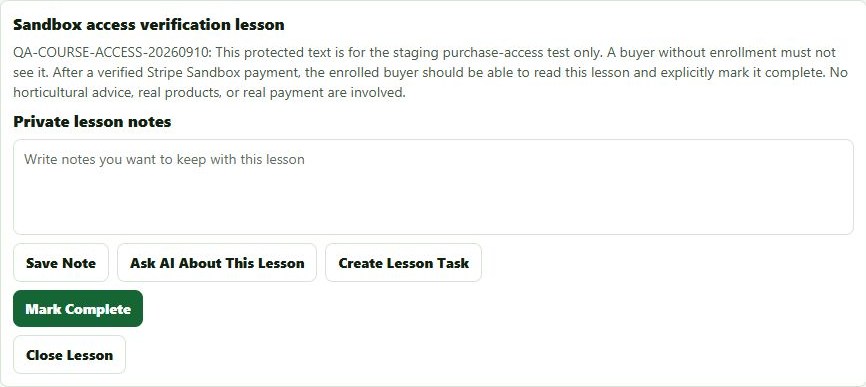
Step 3 of 3: Keep paid lessons protected
A signed-out visitor can see the lesson title, but the paid lesson remains locked. Signing in does not start checkout or enroll the visitor automatically.
Accepted staging visitor view of the same course, captured September 27, 2026. Synthetic fixture. Cropped to the sign-in and lesson-access sections; no new purchase was run. 
What this example shows
The same course has author controls, a saved lesson preview and a visitor outline with paid content locked. Opening a course is not enrollment or lesson completion.
Fit and limits
This example uses Commercial, one of the four account types, not a separate creator tier. Course publishing is available on every plan within its limits. A paid course still requires eligible seller setup and verified paid access. No earnings or learning outcome is promised. Existing hosted Lives can use broadcast tools such as OBS; guest backstage, tips and course gifting are separate future work, not shown here.
Connect assigned work with its record
Let the team see the task, its recorded status and the history behind it, with controls that follow each person's role.
Read-only walkthrough with synthetic example records. Screenshot controls are not interactive.
Step 1 of 2: Read the assigned task
The same task keeps its room, assignee and recorded completion together. This Viewer account cannot update it.
Actual staging Viewer screen, captured October 5, 2026, showing a retained July 20 synthetic test record. Cropped screenshot, not evidence that physical work occurred. 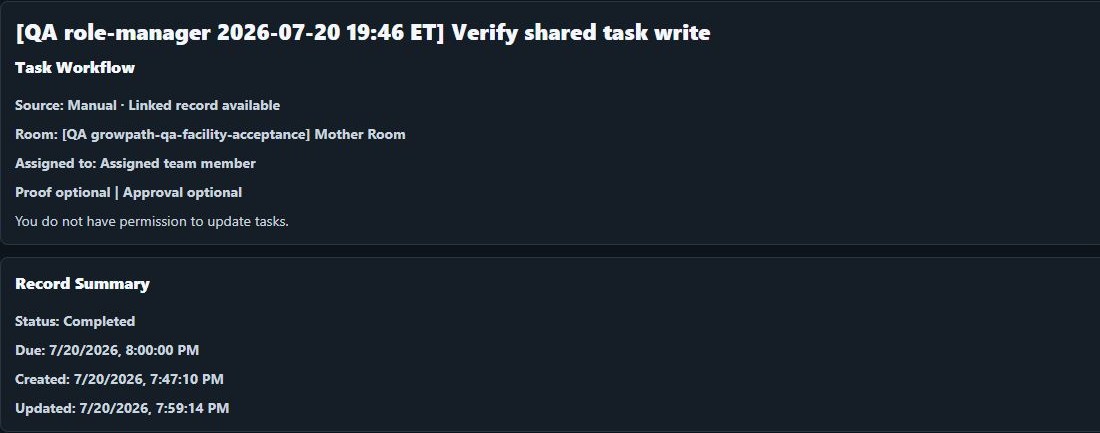
Step 2 of 2: Review the corresponding history
The task's history records its creation and later update. The update time matches the completed task above.
Actual staging history screen, captured October 5, 2026. Cropped synthetic legacy record; not legal certification or a cryptographic verification claim. 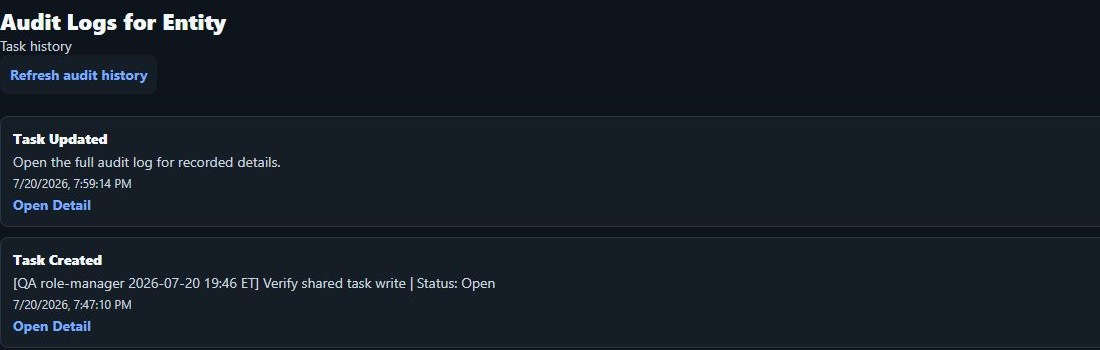
What this example shows
The completed task and its creation/update history refer to the same synthetic record. A Viewer can read it without receiving task-edit controls.
Fit and limits
Facility includes 200 grows, 2,000 plants and a shared pool of 2,000 AI credits per week. These screenshots show recorded state, not proof of physical work or compliance certification. This retained July history is legacy/unverified, not proof of a modern cryptographically verified audit chain.
More account-type highlights
Explore the four existing plans. Sellers and creators both use Commercial; these bundled examples do not open a signed-in workspace.
One plant to track. Help around the house.
You do not need a grow room to use GrowPathAI. Keep a journal for one plant you want to follow closely, and use the available plant-care tools for questions about plants around the house.
- Keep that plant's photos, observations and care notes together instead of searching your camera roll.
- Record watering and other care tasks, then look back at what you actually did.
- Use crop-neutral identification and plant-care tools without turning on cannabis content. AI actions use the displayed number of credits.
- Browse the community and courses, and explore stores without buying a paid subscription.
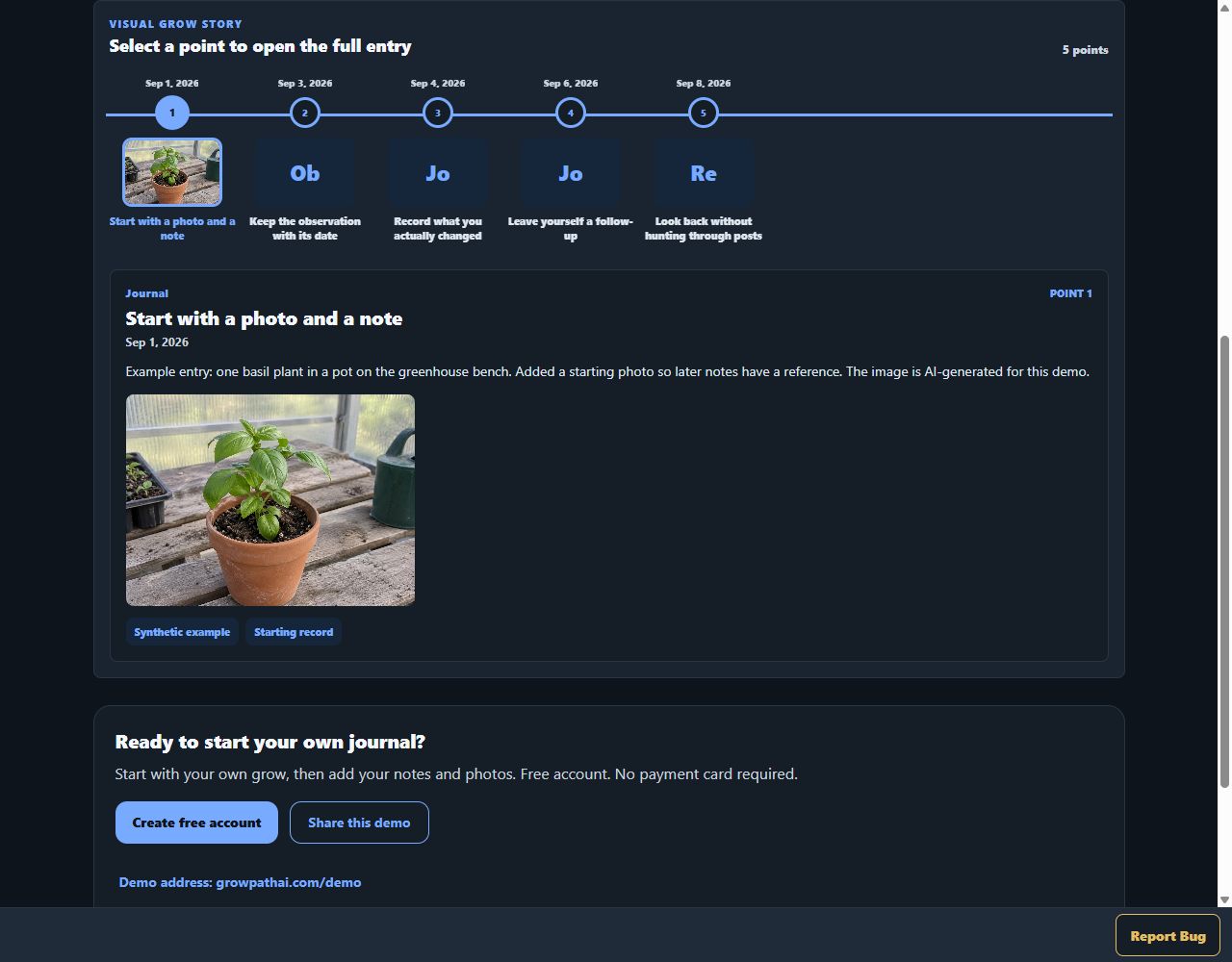
- Try the five-point journal below and see how a reviewed, read-only timeline can be shared.
Free includes 1 tracked grow, 1 tracked plant and 5 AI credits per week. Other plants do not become additional tracked records, and AI use is not unlimited. No payment card is required.
Actual GrowPathAI interface with synthetic journal data. The basil image is AI-generated, not a customer grow or a claimed result.
Open full-size Free · around the house screenshot
Explore personal growingKeep more plants and runs organized
For a growing collection or several runs, Pro keeps the same personal workflow with more room and a larger AI allowance.
- Track photos, feeding notes, readings and tasks across multiple grows.
- Review earlier entries so the lessons from one run are available for the next.
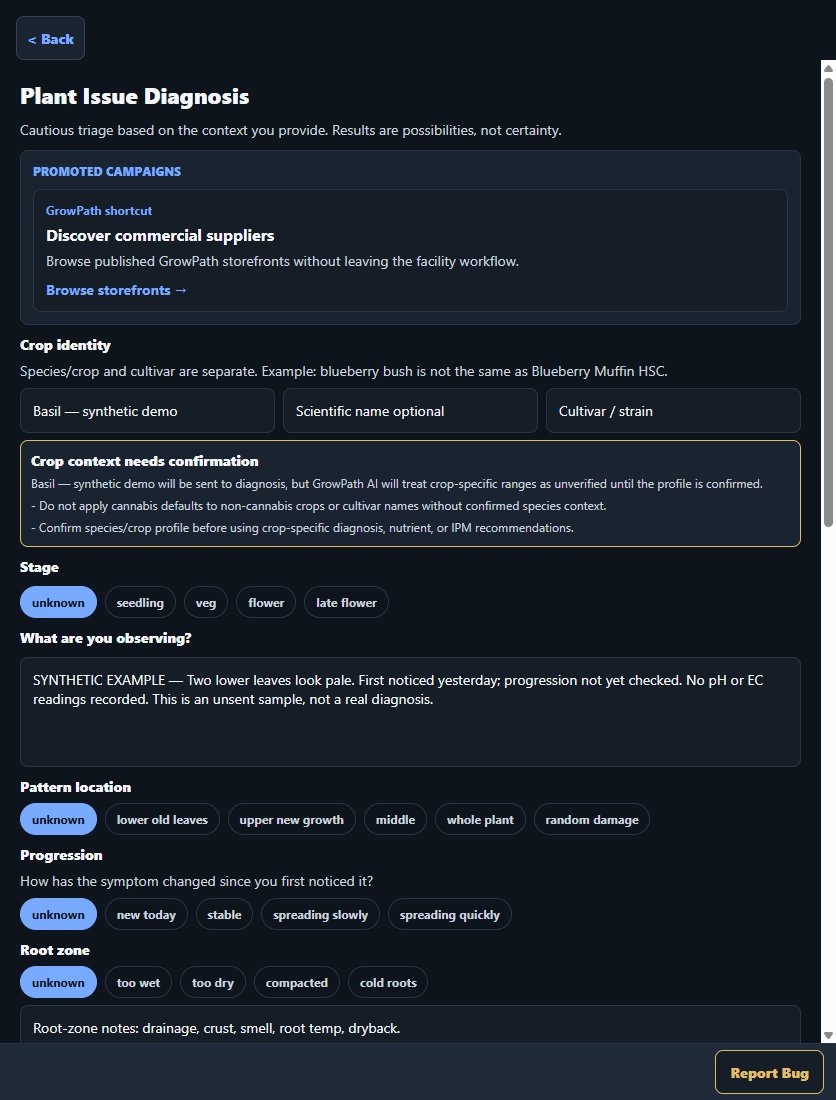
- Bring observations and measurements to AI-assisted plant review instead of guessing missing context.
- Use supported timeline exports and reviewed sharing while keeping private records private.
- Keep access to community, course and shopping paths without a Facility workspace.
Pro includes 10 grows, 50 plants and 100 AI credits per week. A standard diagnosis uses 3 credits; check each action's displayed cost.
Actual staging interface captured October 5, 2026. This screenshot shows the intake form, not an AI result. Synthetic, unsent example: no AI analysis, diagnosis or treatment recommendation was produced. This form is not exclusive to Pro.
Open full-size Pro · more growing room screenshot
Compare Pro and Free allowancesConnect your growing work with your audience
For small businesses, brands, educators and influencers who need storefront and creator workflows alongside grow records.
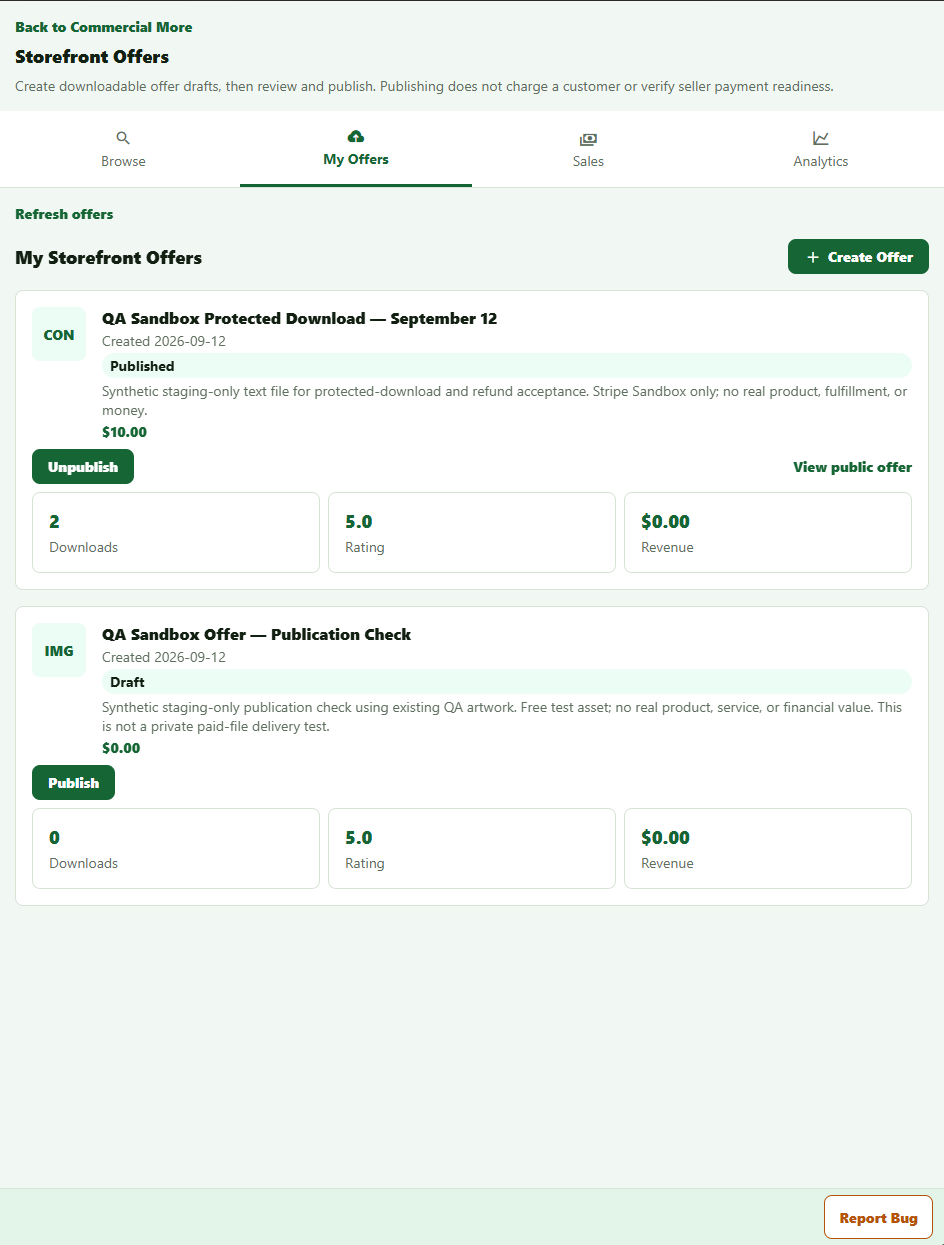
- Organize product information and eligible storefront offers; review drafts before publishing.
- Build and share courses, with eligible free or paid access and saved lessons.
- Host Live sessions using existing broadcast tools such as OBS; GrowPathAI provides the hosted audience experience.
- Keep product trials, tasks and supporting records together in the Commercial workspace.
- Review the existing sales and activity summaries without treating download counts as payments.
Commercial includes 50 grows, 500 plants and 500 AI credits per week. Publication does not verify payment readiness. Seller, product and purchase eligibility still apply. In-app guest backstage and course gifting are not part of this demo.
Owner-supplied staging screenshot captured October 1, 2026. Titles, prices, downloads and ratings are synthetic QA fixtures—not real sales, customer reviews or business results. Screenshot buttons are not interactive.
Open full-size Commercial · businesses & creators screenshot
Explore Commercial workflowsSee the work across rooms and your team
For teams that need shared operational records, assigned work and role-based access—not just a larger personal journal.
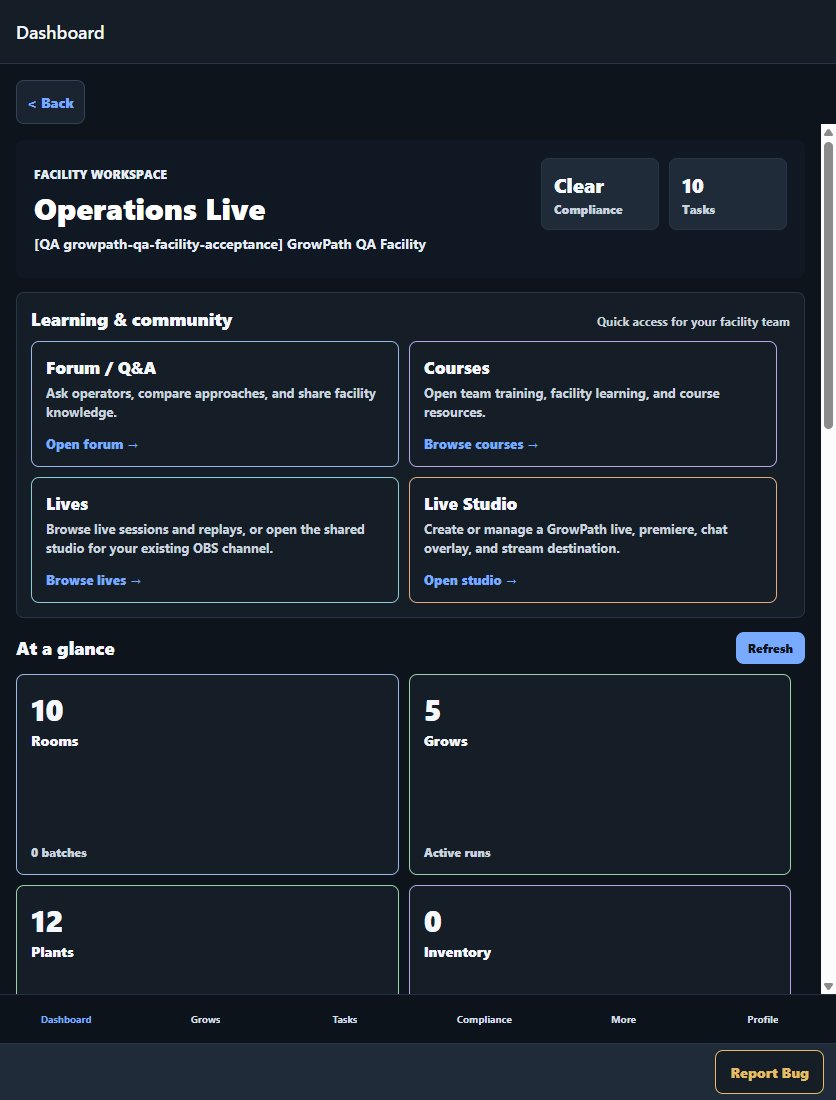
- Move from the dashboard into rooms, grows and plant records.
- Assign and review tasks with the team; access follows each person's role.
- Use SOP libraries and execution records to keep procedures and recorded work connected.
- Review inventory, recorded checks and supported reports and exports.
- Use team learning and available sensor-import workflows within their supported setup and permissions.
Facility includes 200 grows, 2,000 plants and a shared workspace pool of 2,000 AI credits per week. Recorded checks are not legal compliance certification. This preview does not expose a customer's workspace or grant operational access.
Actual staging interface captured October 5, 2026. Counts and recorded check statuses are synthetic test data, not customer usage, outcomes or compliance certification.
Open full-size Facility · teams & rooms screenshot
Explore Facility workflowsGreenhouse basil — sample journal
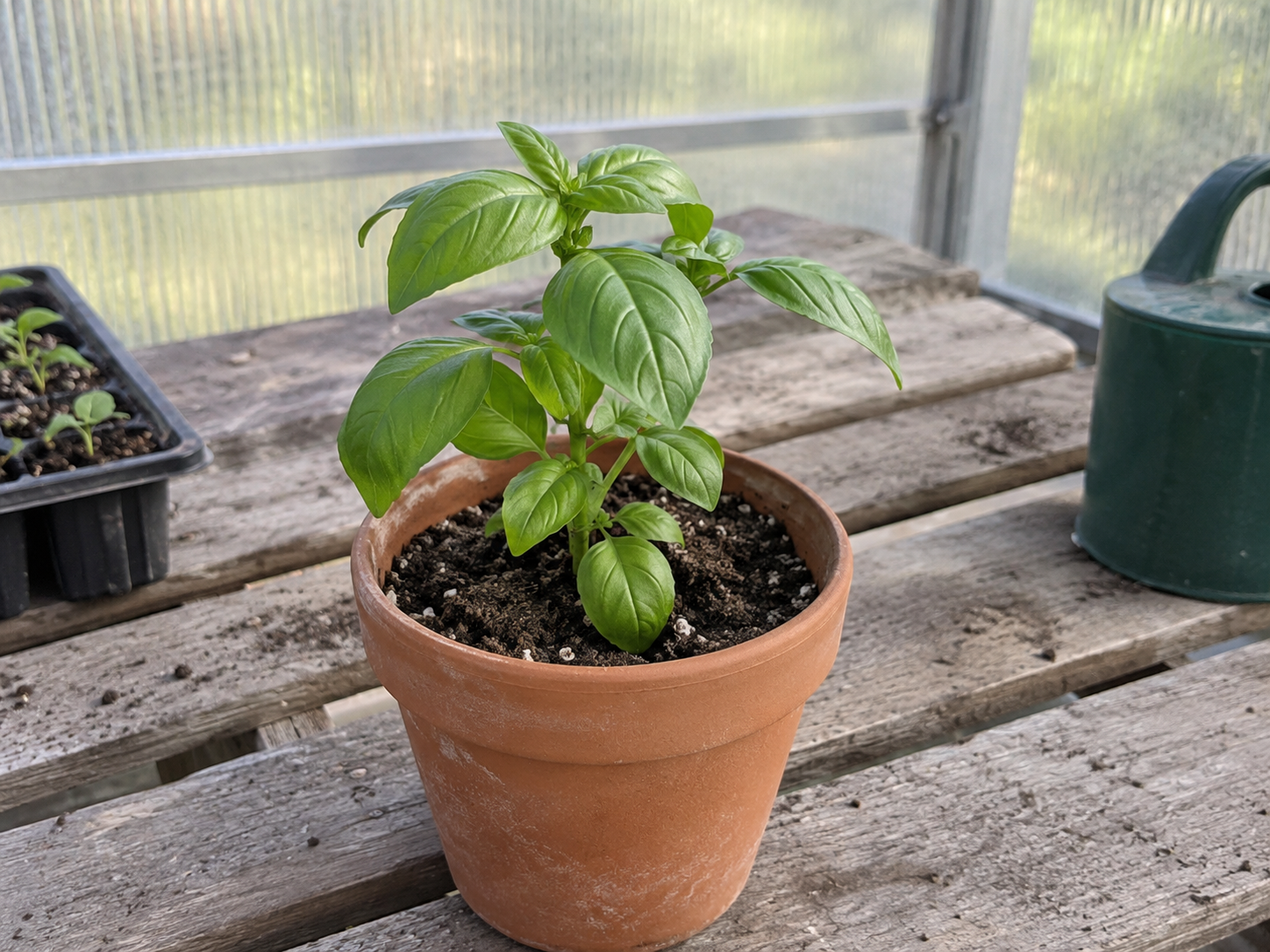
Synthetic demo — not a customer grow. Dates, notes and readings are invented examples. The basil image is AI-generated, not evidence of a real plant or result.
This sample cannot be edited and does not run AI tools or change your account. Open any entry below. The visual timeline is available with JavaScript.
Start with a photo and a note — Sep 1, 2026
Example entry: one basil plant in a pot on the greenhouse bench. Added a starting photo so later notes have a reference. The image is AI-generated for this demo.
Keep the observation with its date — Sep 3, 2026
Example entry: the pot felt lighter than at the last check. Wrote down that observation rather than assuming what caused it.
Record what you actually changed — Sep 4, 2026
Example entry: recorded a watering and a sample volume of 250 mL. This is made-up journal data, not a watering recommendation for your plant.
Leave yourself a follow-up — Sep 6, 2026
Example entry: next time, check the pot again and take a new photo from the same angle. No growth improvement or cause has been established in this sample.
Look back without hunting through posts — Sep 8, 2026
Example review: the starting photo, observation, watering note and follow-up are in one dated sequence. Select any earlier point to read it again. In your own account, you decide what to record and what to share.
Ready to start your own journal?
Free account. No payment card required.